Sync from Mobile Apps
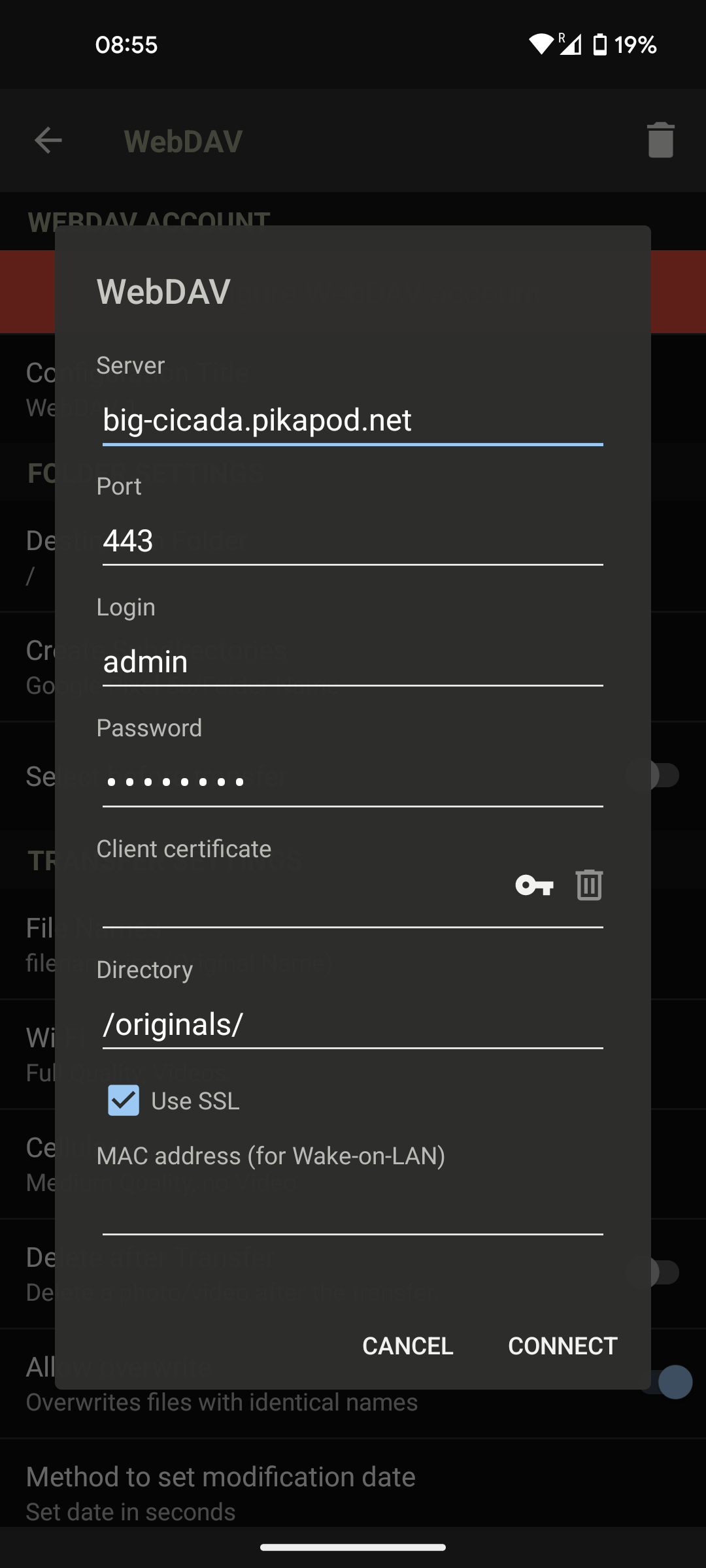
The official PhotoPrism site already has a guide on how to sync with different mobile apps. For PikaPods specifically, the settings are as follows for WebDAV-based sync:
- Server: Your PikaPods domain. E.g.
eager-beaver.pikapod.net - Port:
443 - Login: Always
admin(until multi-user support is added) - Password: The password used to log into PhotoPrism. Set as
PHOTOPRISM_ADMIN_PASSWORDwhen setting up the pod and then editable from the PhotoPrism settings page. - Directory:
/originals/or/import/ - Use SSL: Should be enabled
Automatic indexing will only start some minutes after upload. You can still follow the upload progress on Library > Logs.
Example:
Import from WebDAV Storage (e.g. Nextcloud)
It’s possible to import pictures from a remote WebDAV location, which e.g. Nextcloud (also available on PikaPods) can provide. Here the steps:
- Add PhotoPrism pod (make sure to config name and password)
- Log in as admin with “admin” and password that you just generated
- Click on the user profile avatar in the bottom left
- Navigate to the “services” tab and click “connect”
- Create new tab and log into your previously set up Nextcloud page
- Click on user profile in top right
- Navigate to security tab
- At bottom type “photoprism” into “app name” and click “create app password” (save these for later)
- Navigate to files tab in Nextcloud
- In bottom left click on “Files settings”
- Copy WebDAV address
- Head back to photoprism tab and paste in WebDAV URL, user, and password
- Enable Directory sync by clicking the little sync button on the remote. Chose appropriate folder and interval
- Give the server a couple hours to copy and index all files.
Maximum Upload Size
PikaPods does not impose a maximum upload limit. PhotoPrism itself applies two separate size limits, both defaulting to 1000 MB (1 GB):
PHOTOPRISM_UPLOAD_LIMIT: the maximum total size of files uploaded through the web interface, in MB.PHOTOPRISM_ORIGINALS_LIMIT: the maximum size of any single media file, in MB. This applies to all media files when they are indexed, not only web uploads. Files larger than this are skipped even when added over WebDAV or placed directly in the originals folder.
Both limits apply to web uploads, so to upload larger files you generally need to raise both. To allow 2 GB, set each to 2000. To remove the limits entirely, set each to -1.
To change these values:
- Open the PikaPods control panel.
- Click on the pod’s settings.
- Scroll down to the “ENV VARS” section.
- Set
PHOTOPRISM_UPLOAD_LIMITandPHOTOPRISM_ORIGINALS_LIMITto your desired value in MB. - Click “Save”.
The maximum upload limit will be updated to the desired value.